With Paid Member Subscriptions, it’s fairly easy to create Tiered (Hierarchical) Subscription Plans for your users.
With PMS, you can create a tiered subscription structure that allows your members to easily upgrade to a higher plan if needed.
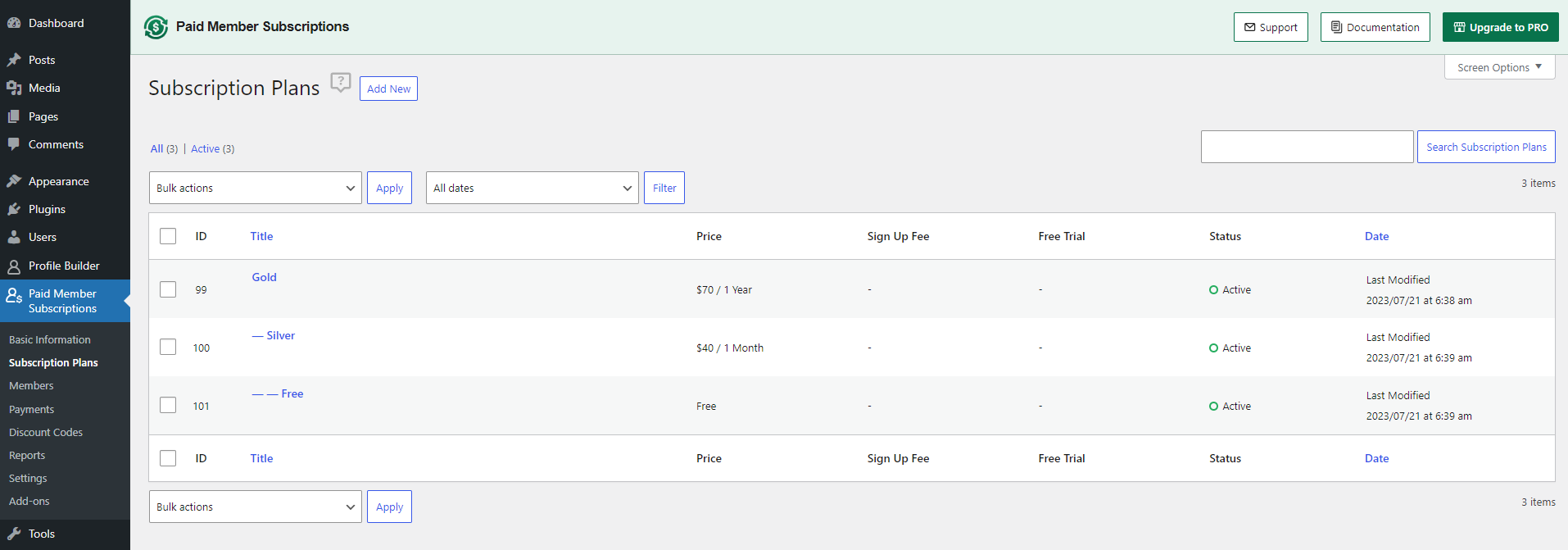
You can create a Subscription Plan if you go to Paid Member Subscriptions → Subscription Plans.
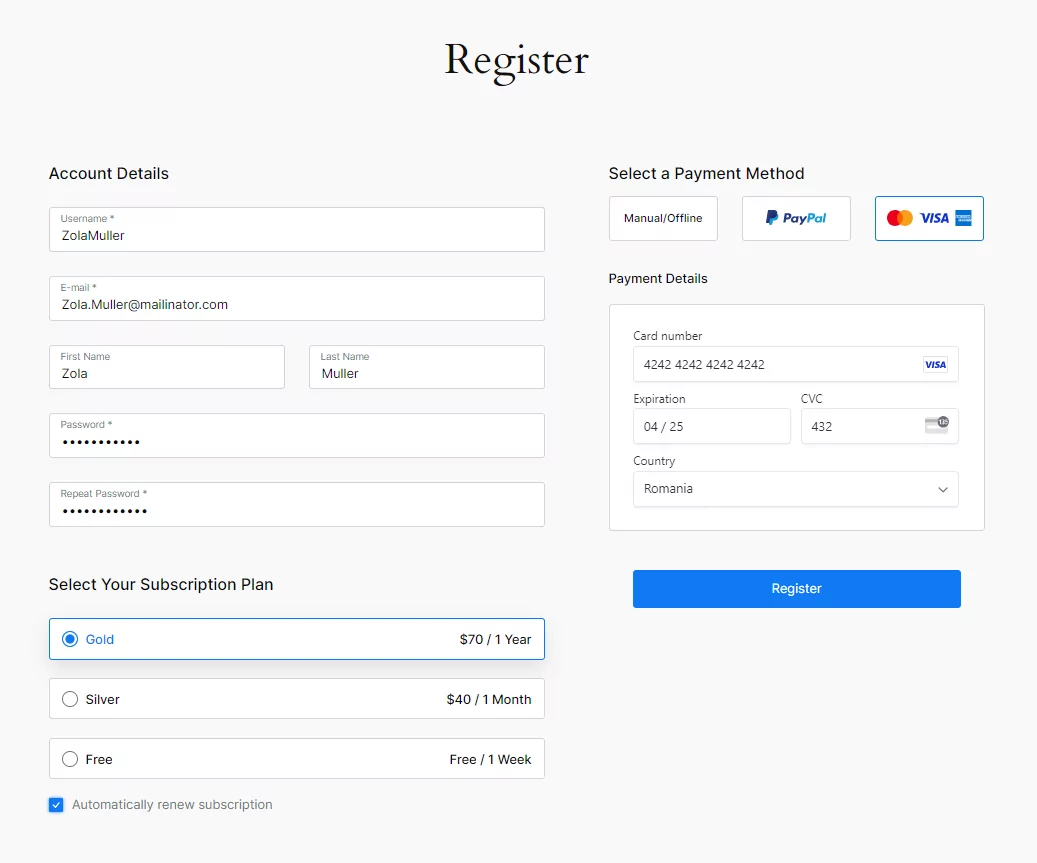
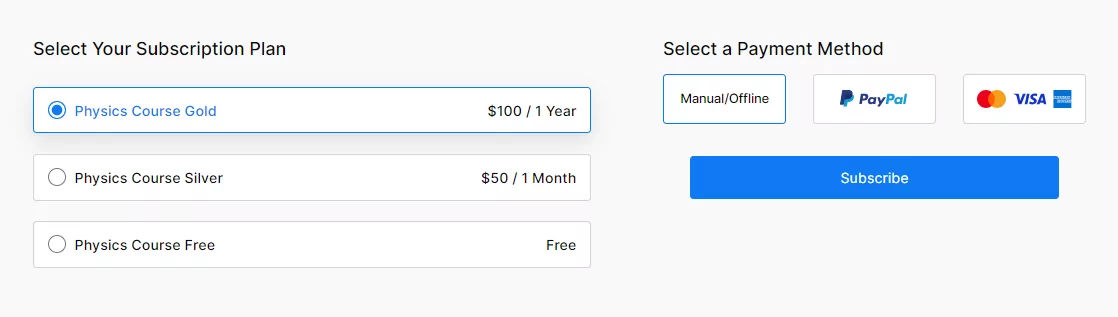
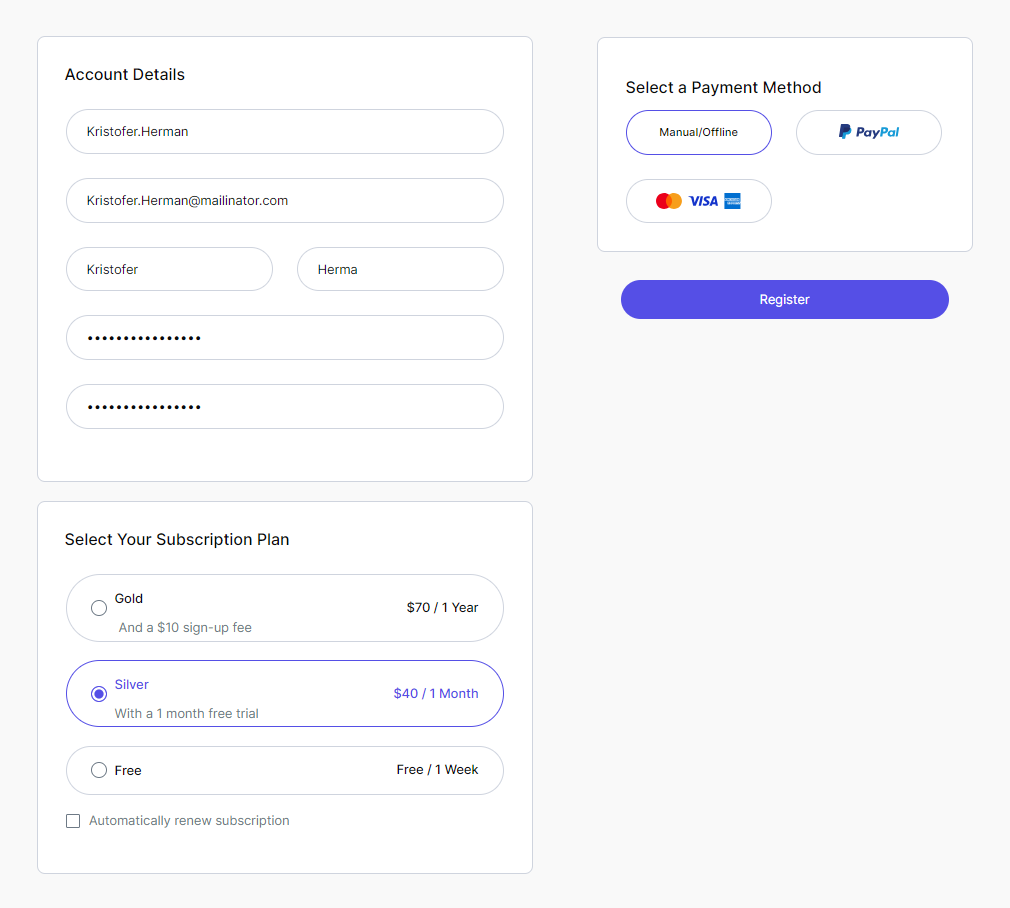
This is how the Subscription Plans created with Paid Member Subscriptions looks in the Registration Form.
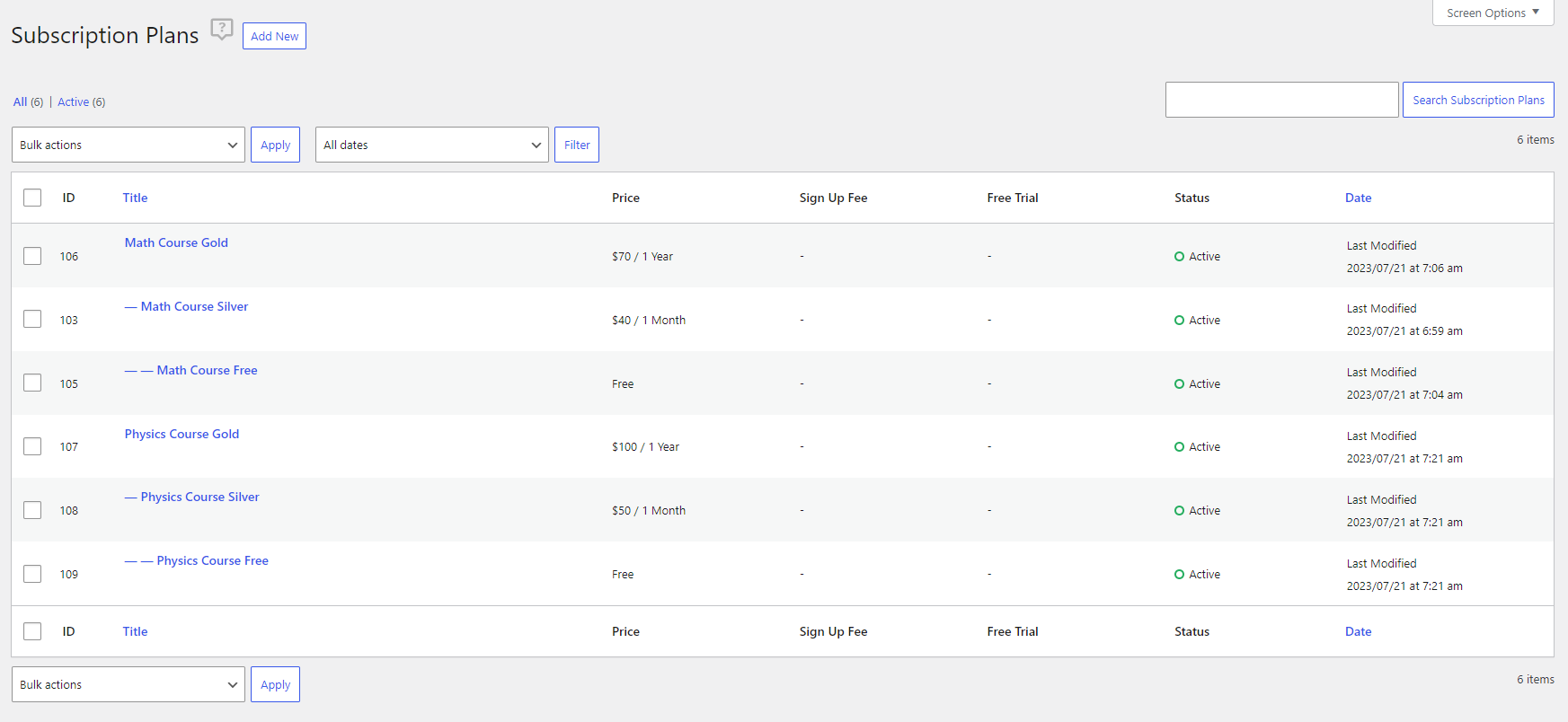
In order to set up multiple subscription-level groups and to allow members to sign up for more than one subscription plan (one per group), you will need to use the Multiple Subscriptions per User add-on (docs).
After you install and activate the Multiple Subscriptions per User add-on, you will be able to set up different subscription-level groups.
At Registration, users will be able to select and purchase only 1 Subscription Plan from a specific Group of Subscription Plans. In our case, they can purchase a Subscription Plan from the Psychics Group or from the Math Group.
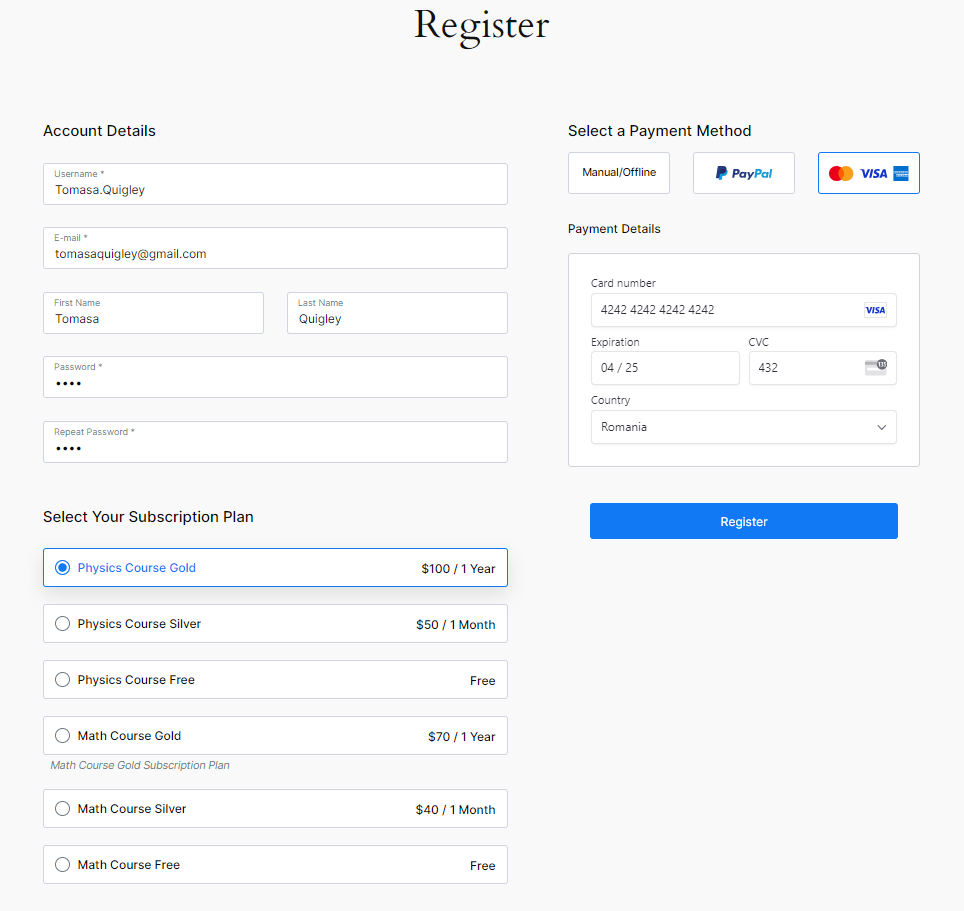
After Registration, logged-in users will be able to purchase another Subscription Plan from the other group if they go to the page with the [pms-register] shortcode.
In our case, at Registration, we subscribed to the “Math Course Free” plan, and now we want to purchase the “Physics Course Silver” plan.
To add a new Subscription Plan, go to Paid Member Subscriptions → Subscription Plans → Click on the Add New button.
If this is your first Subscription Plan, it will be considered the Main Subscription Plan (Parent Subscription Plan). All other Subscription Plans that you will create will be Upgrades or Downgrades of this Main Plan (Parent Subscription Plan).
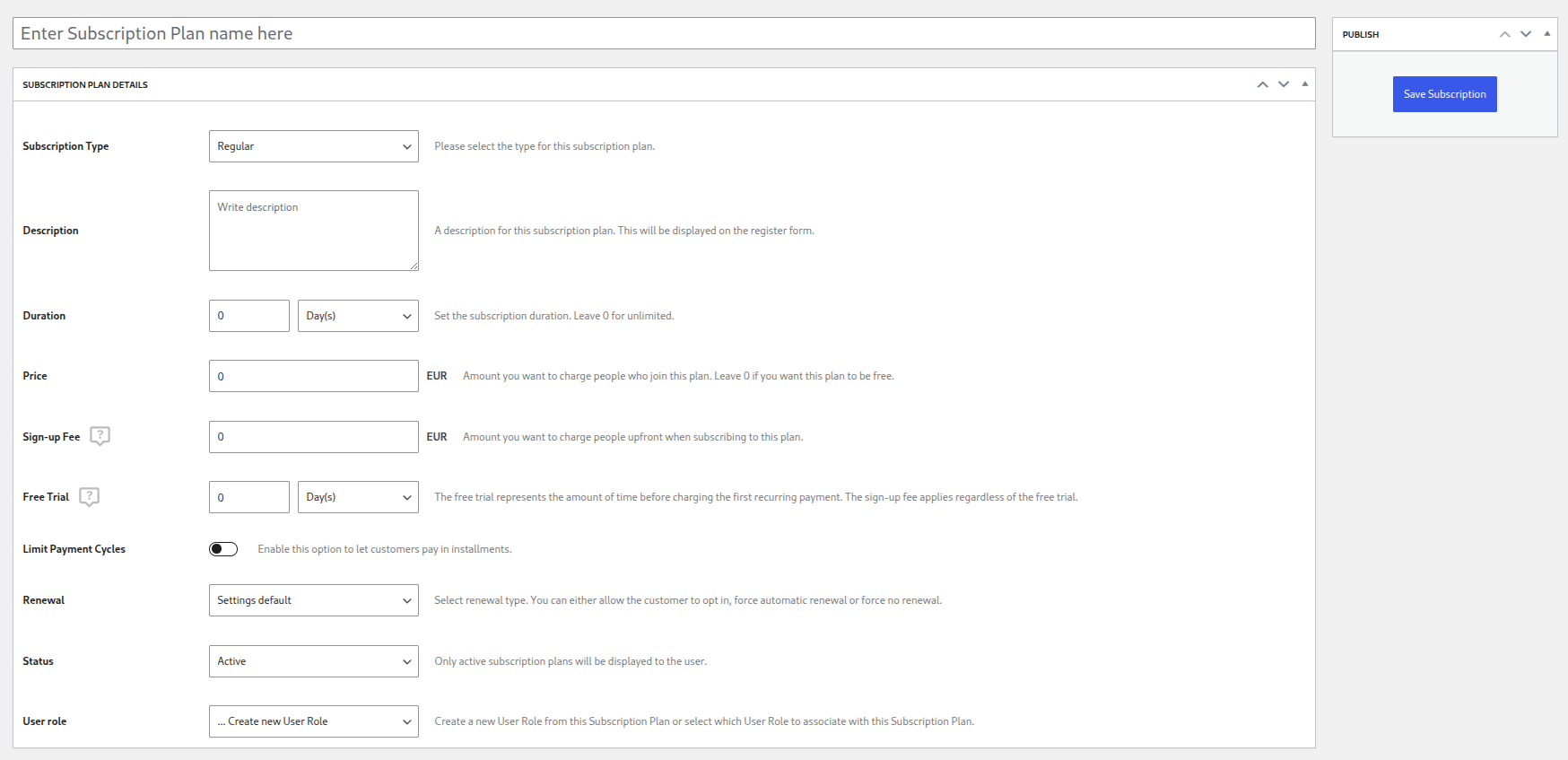
Adding a new Subscription Plan gives you access to the following options to set up:
The Sign-up Fee represents the amount that you can charge people upfront when subscribing to a Subscription Plan.
To set up the Sign-up Fee option go to Paid Member Subscriptions → Subscription Plans → Edit your Subscription plan → setup Sign-up Fee.
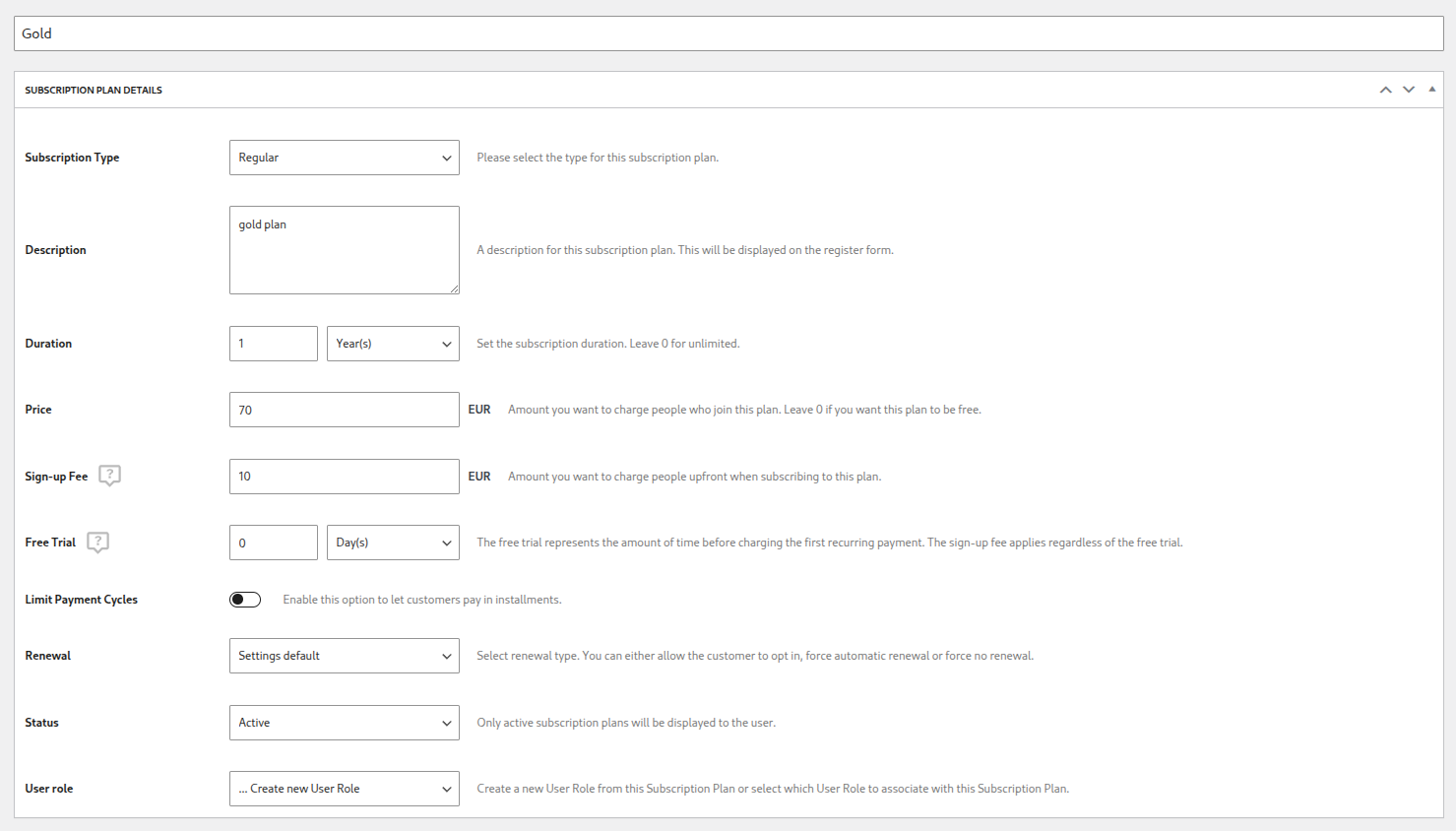
Based on the example above, users will need to pay $70 for the Gold plan plus the $10 Sign-up Fee. Users will pay the Sign-Up Fee only once.

The Free Trial represents the amount of time before charging the first Recurring Payment. The Sign-up Fee applies regardless of the Free Trial.
To set up the Free Trial option, install and activate the appropriate add-on, and go to Paid Member Subscriptions → Subscription Plans → Edit your Subscription plan →Setup Free Trial.
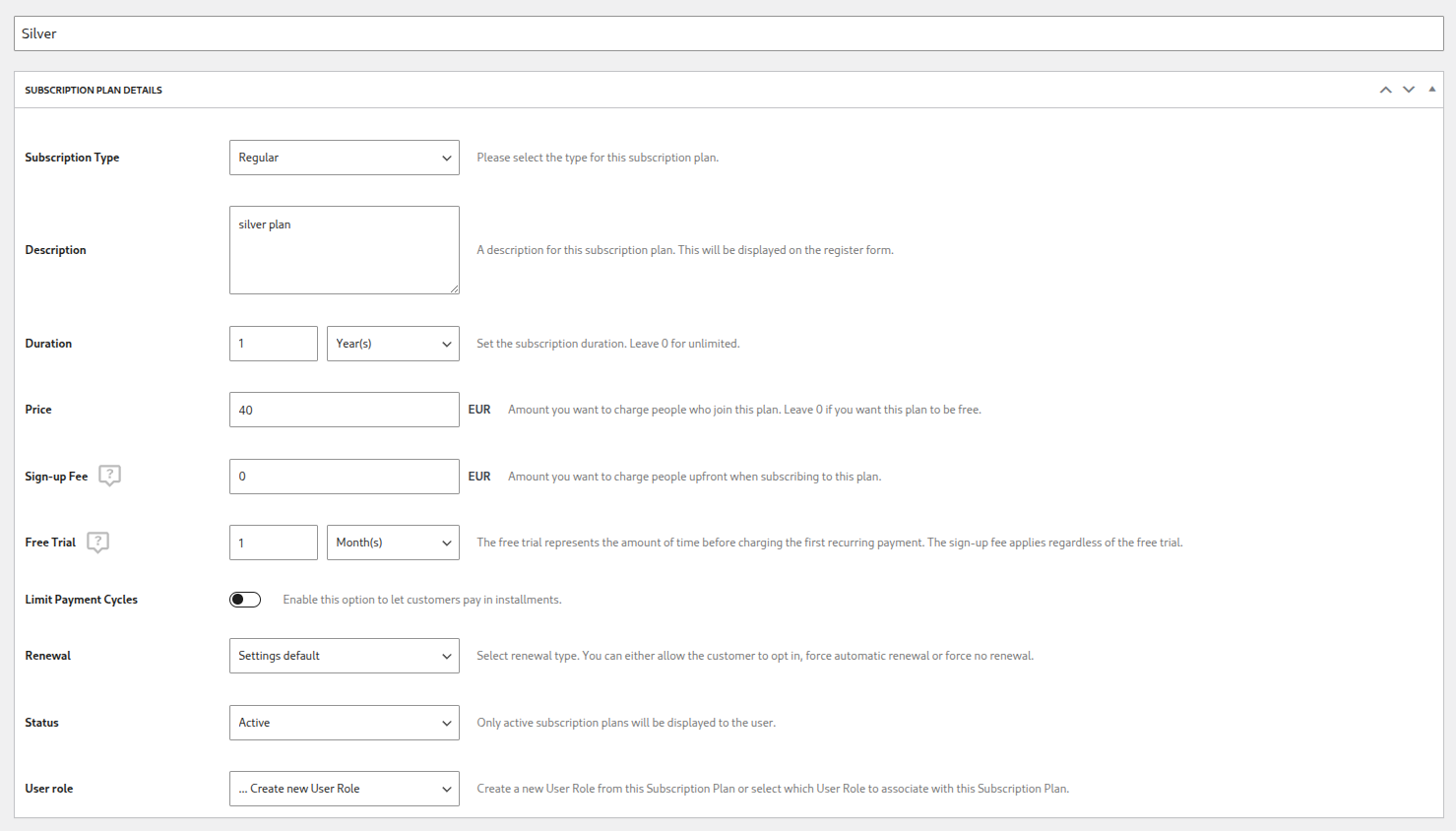
Based on the example above, users will receive a 1 Month Free Trial if they purchase the Silver Plan. After the expiration of the Subscription Plan, users will be able to manually renew the plan from their Account.
If you set the Renewal option to “Always renew automatically”, the Subscription Plan will renew automatically.
Using this option, you can allow your customers to pay in installments. This will make the Subscription Plan function like a recurring subscription, but only for a specified number of billing cycles.
Enabling this setting will make the following fields available:
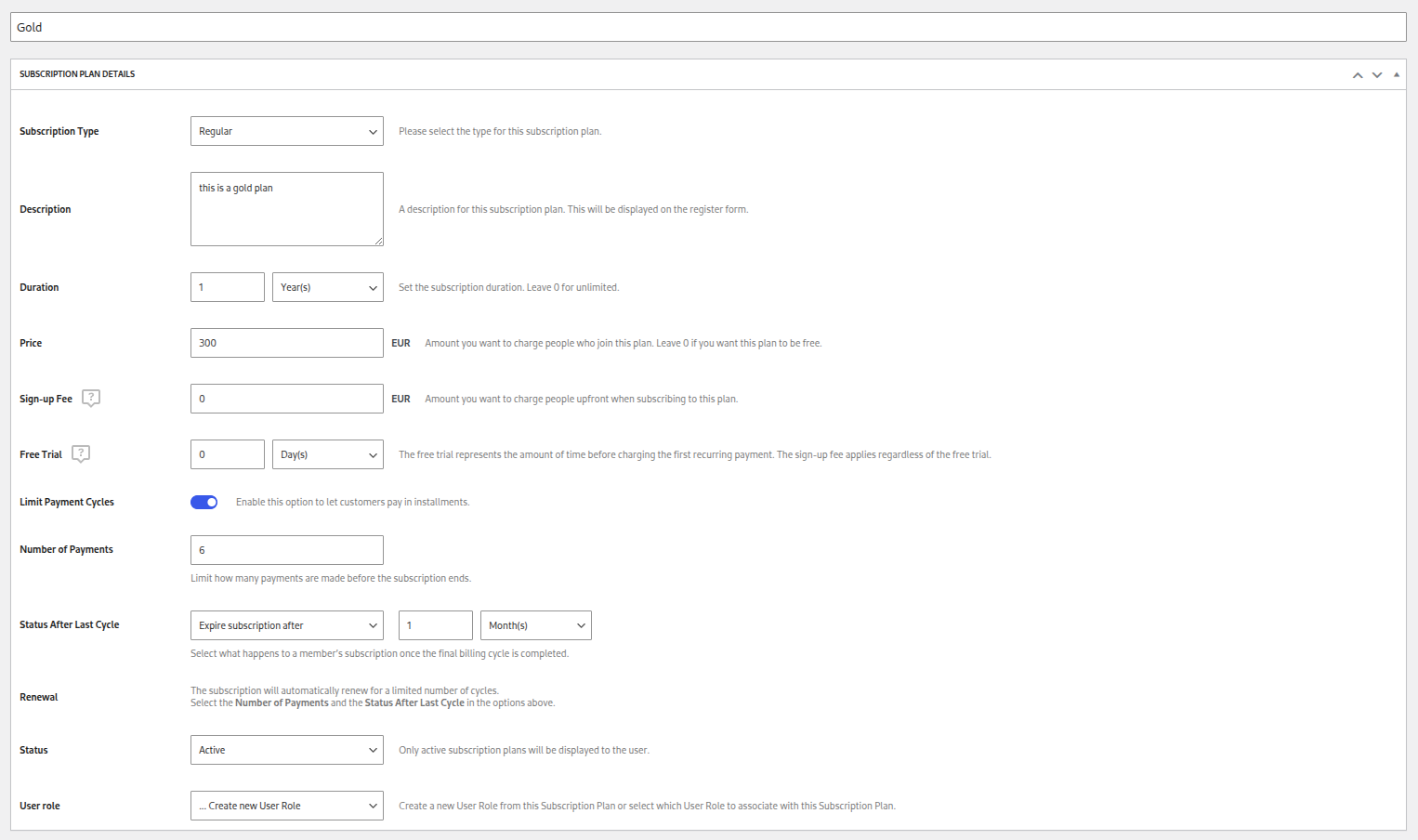
The Pay in Installments settings cannot be used alongside the following options:
The Renewal Option lets you choose whether a specific subscription plan should be recurring or one-time. This gives you the flexibility to tailor each plan to your business needs.
To set up the Renewal option, go to Paid Member Subscriptions → Subscription Plans → Edit your Subscription plan → Edit the Renewal Option.
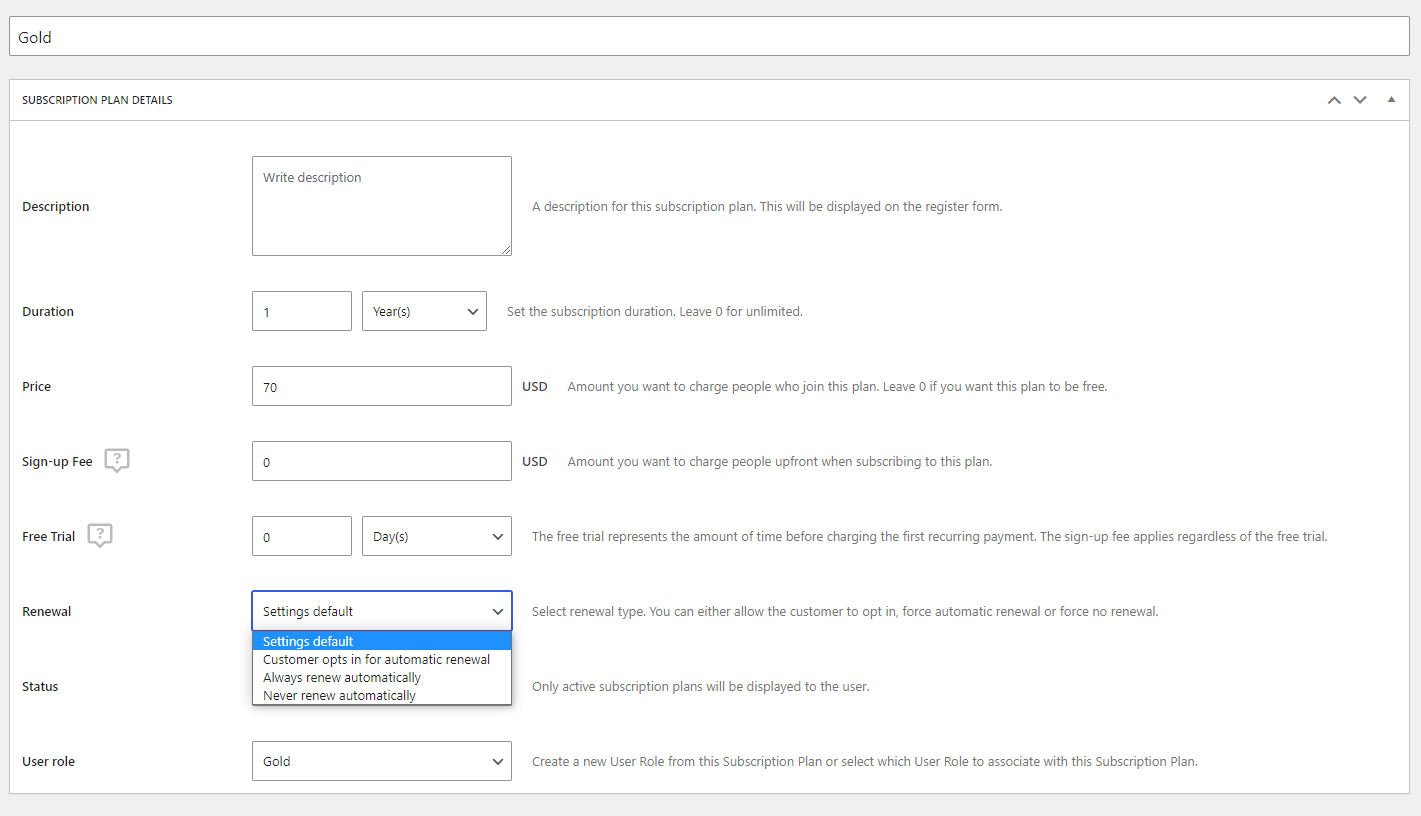
We can set the Renewal option to:
If the Renewal option is set to “Customer opts in for automatic renewal”, users will be able to choose if the subscription is recurring by checking the “Automatically renew subscription” checkbox displayed in the Registration form.

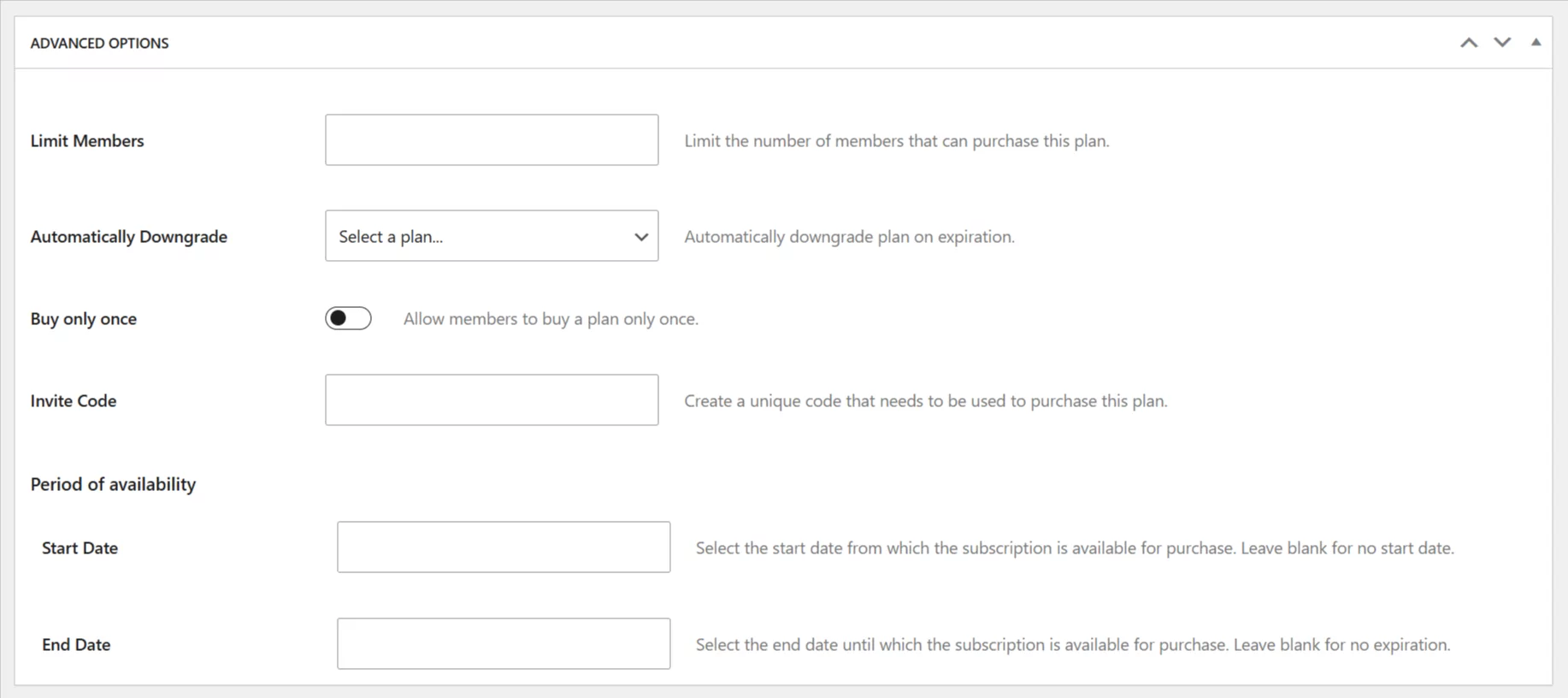
These options extend the functionality of Paid Member Subscriptions by adding a new layer of flexibility and control. It lets you:
For a complete overview of what these settings can do, check the Advanced Subscription Toolkit add-on page.
All the Upgrade / Downgrade Subscription Plans are assigned to the Parent Subscription Plan. In our case, we created the Silver Subscription Plan.
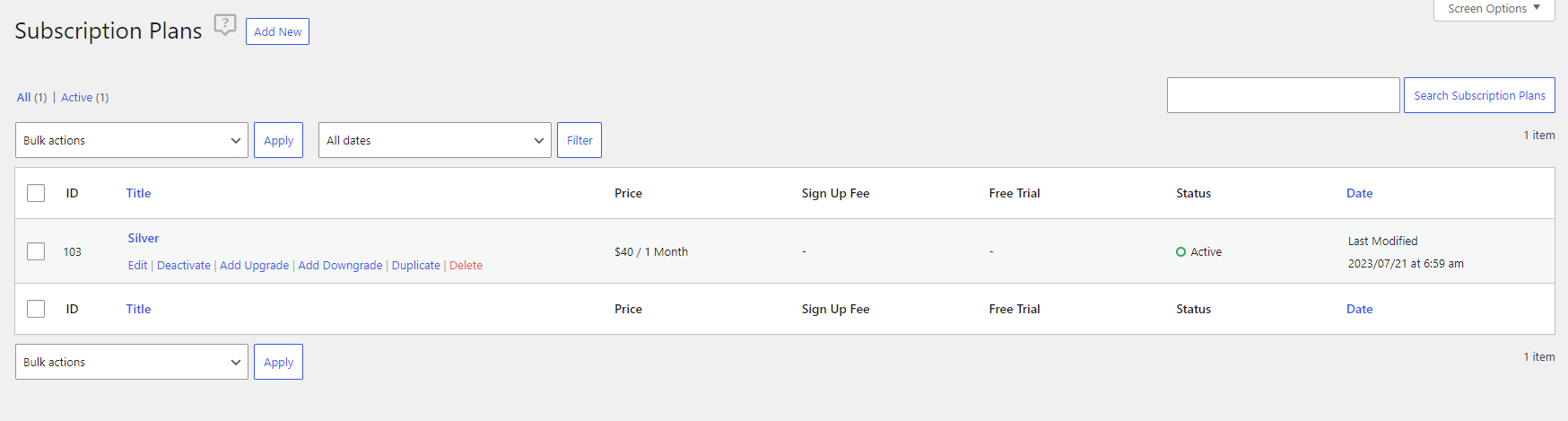
To create an Upgrade Subscription Plan, we will need to click on the Add Upgrade link, displayed when hovering the cursor over the Subscription Plan, or by editing the main plan and clicking on the Add Upgrade button. In our case, we created a Gold Subscription Plan.
By creating the Gold Subscription Plan, we changed the position of the main plan (Parent Subscription Plan), in our case, the Silver Plan, and the new Upgrade Subscription Plan becomes the main plan (Parent Subscription Plan).
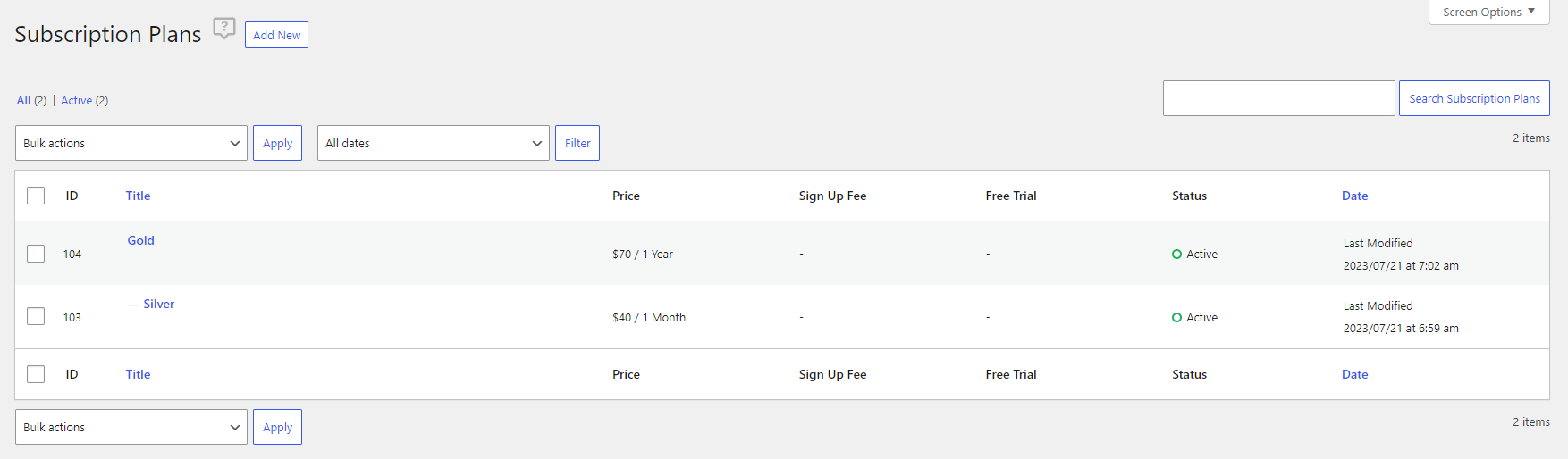
To create a Downgrade Subscription Plan, we will need to click on the Add Downgrade link, displayed when hovering the cursor over the Subscription Plan, or by editing the main plan (Parent Subscription Plan) and clicking on the Add Downgrade button. In our case, we created a Free Subscription Plan.
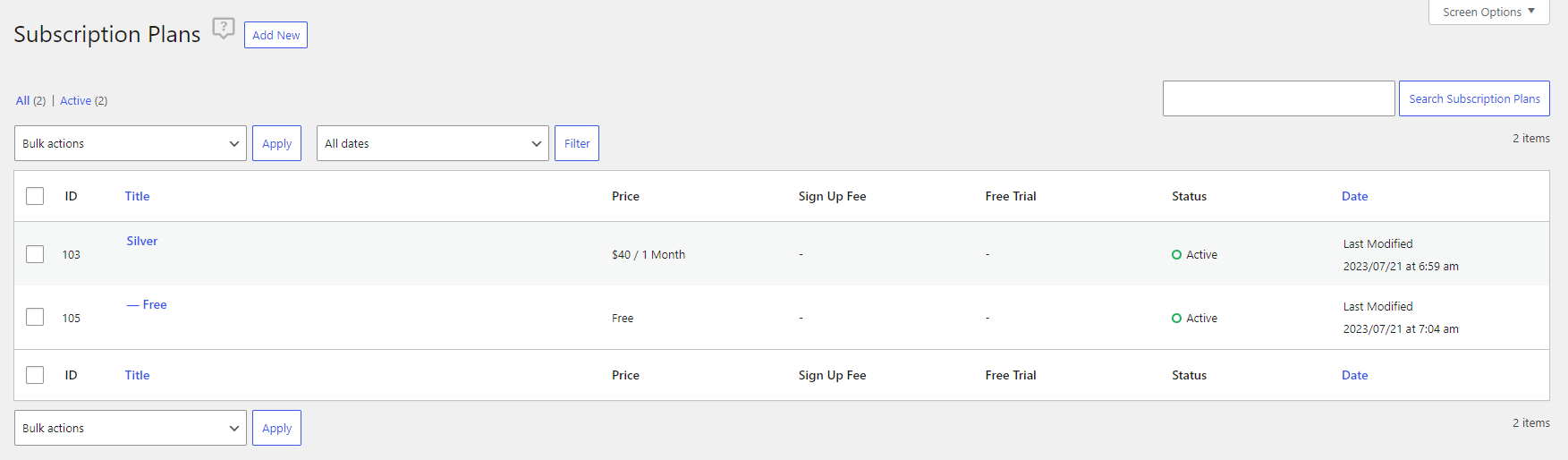
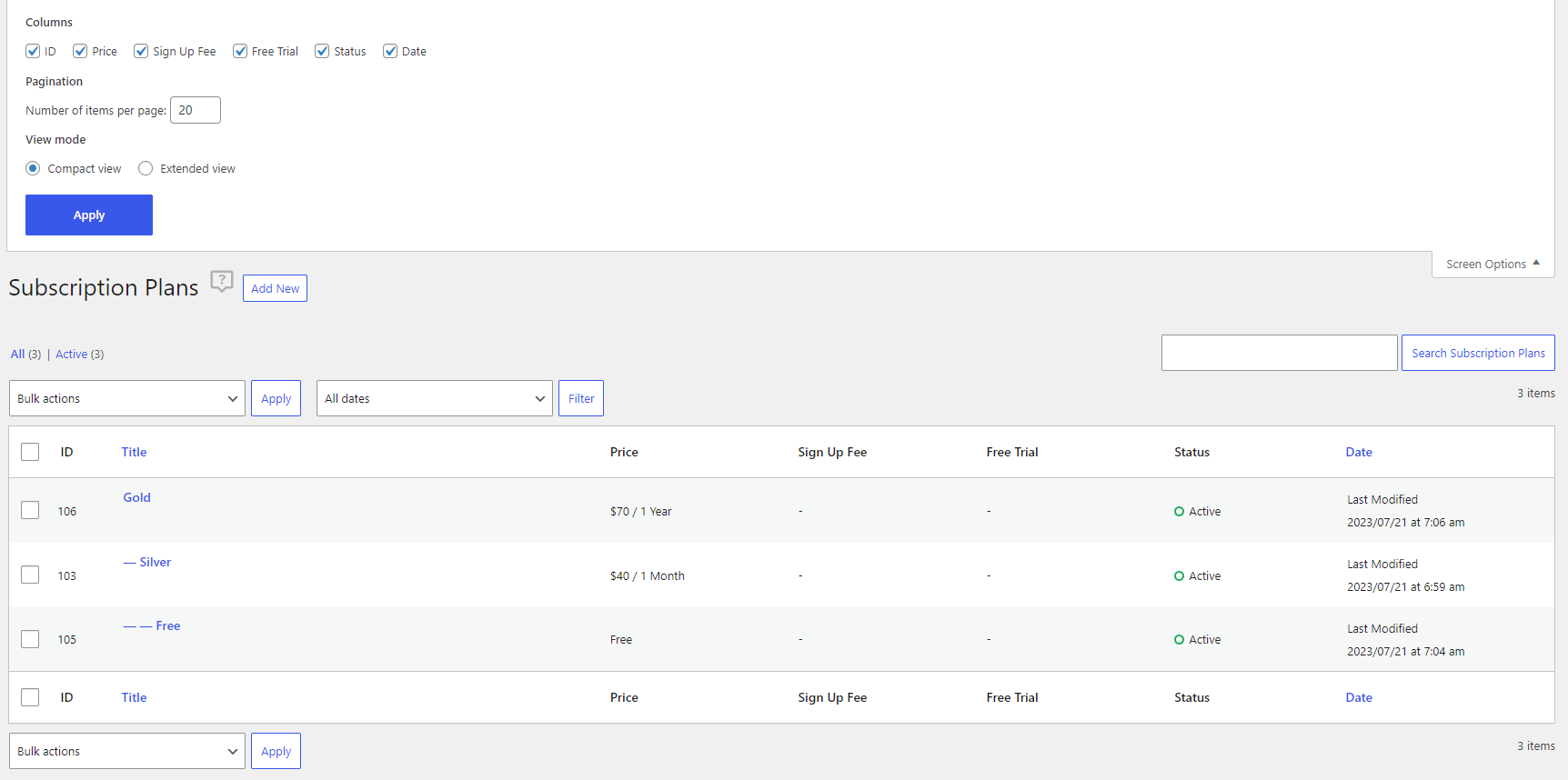
In the Subscription Plans interface, we can re-position our plans, delete them, bulk deactivate/activate plans, filter Subscription Plans, search based on Subscription Plan Name, or change the number of Subscription Plans displayed per page.
In order to re-position a Subscription Plan, hover the cursor over the Subscription Plan and click on the Up / Down arrow.
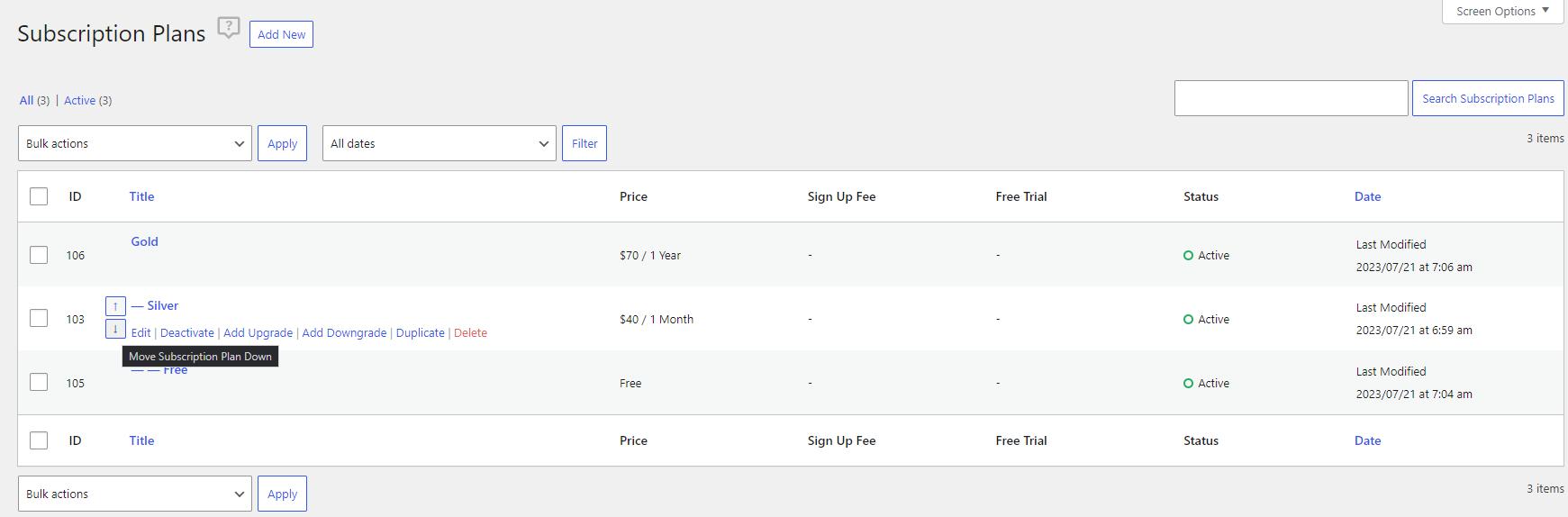
In order to delete a Subscription Plan, hover the cursor over the Subscription Plan and click on the Delete link.
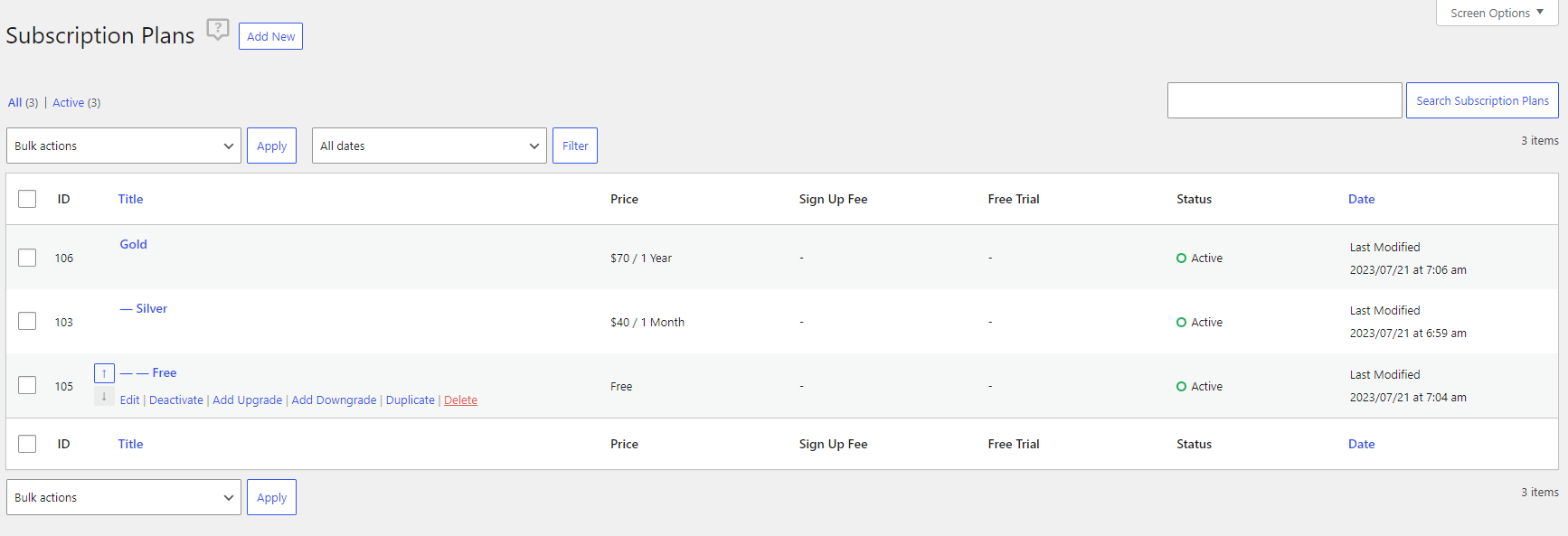
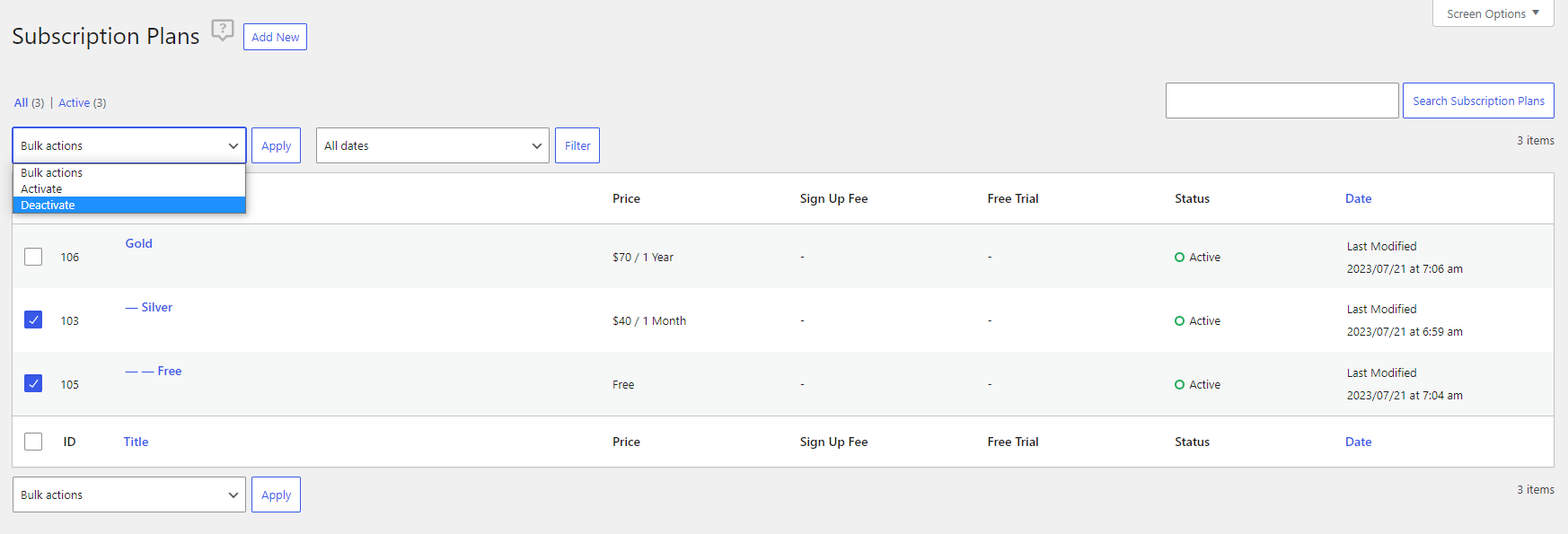
In order to bulk deactivate/activate Subscription Plans, check the Subscription Plans and click on the Bulk Actions option.
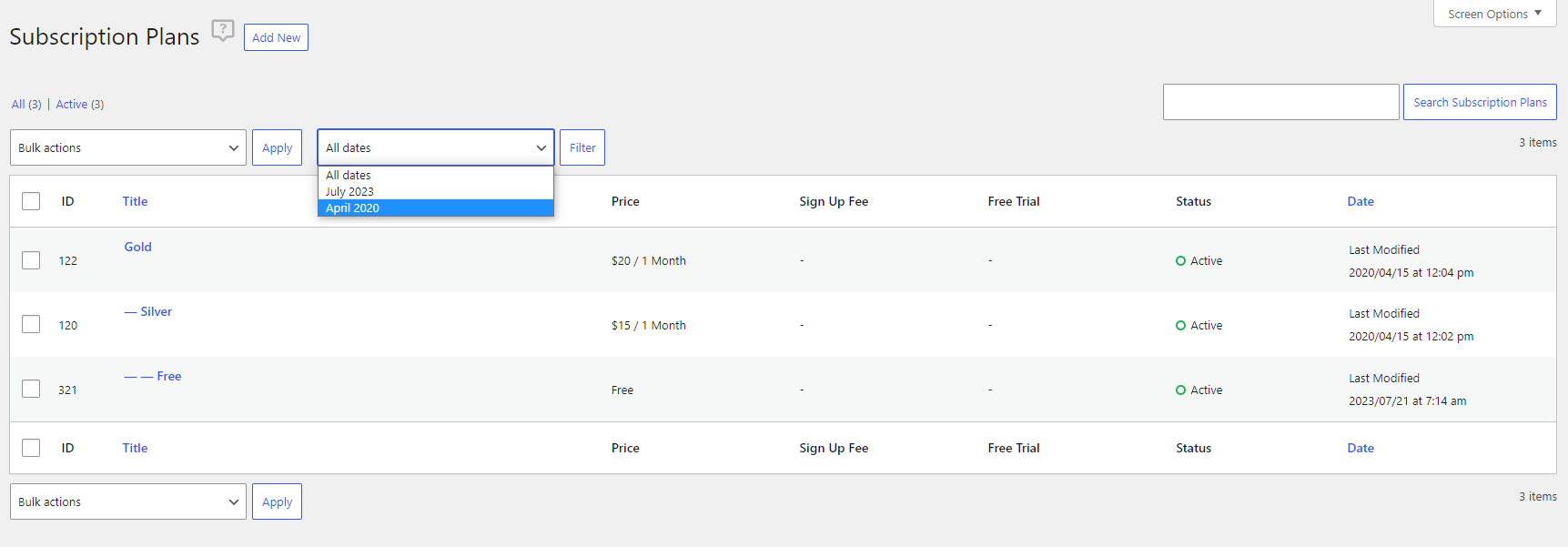
In order to filter Subscription Plans based on date, click on the All Dates option, select a date, and click on Filter.
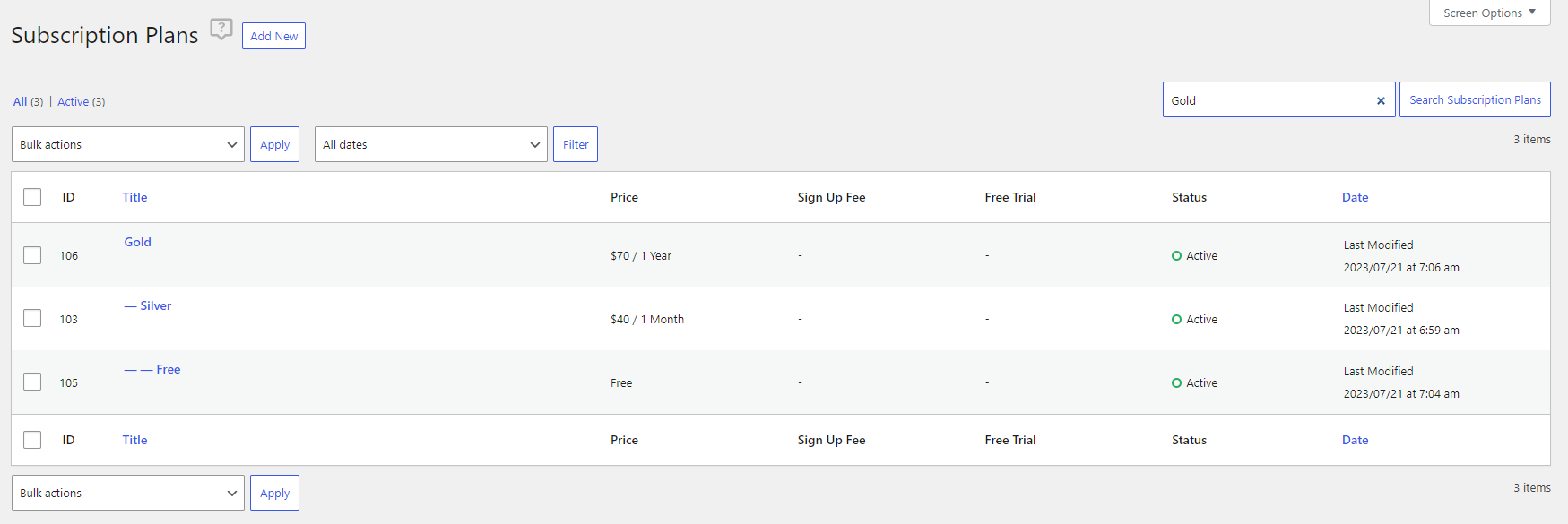
In order to search for a Subscription Plan based on name, add the name in the Search Subscription Plan box and click on the button.
In order to change the number of Subscription Plans displayed per page, click on Screen Options → Set the value and click on Apply.

Accept (recurring) payments, create subscription plans and restrict content on your website. Easily setup a WordPress membership site using Paid Member Subscriptions.
Get Paid Member SubscriptionsCombine the power of Profile Builder with Paid Member Subscriptions to set up user registration, memberships, and recurring revenue.
Get 25% off with the bundle